 BasicData
Documentation
Customer Assets for the JSM Portal gives your customers a secure self-service view of their assigned assets (JSM Assets / Insight) right inside the Jira Service Management customer portal. Customers browse and search their devices and licenses, edit schema-approved attributes and raise asset-linked requests: report a problem, register an asset, request a change or ask a question.
Requirements
- Jira Service Management Cloud with Assets (Premium/Enterprise).
- An asset schema with an owner per object type: either a user attribute on the object itself, or an object reference to a linked object (for example an employee record) that carries the user attribute. The app auto-suggests likely candidates, including linked-object paths.
- A JSM project with request types the app can use for asset requests.
- Site-admin permissions for configuration.
cmdb.config.not.found. The built-in check ("Verify field" in step 1 of the configuration) detects exactly this case and tells you what to fix.
Setup in 4 steps
1 · Open the configuration
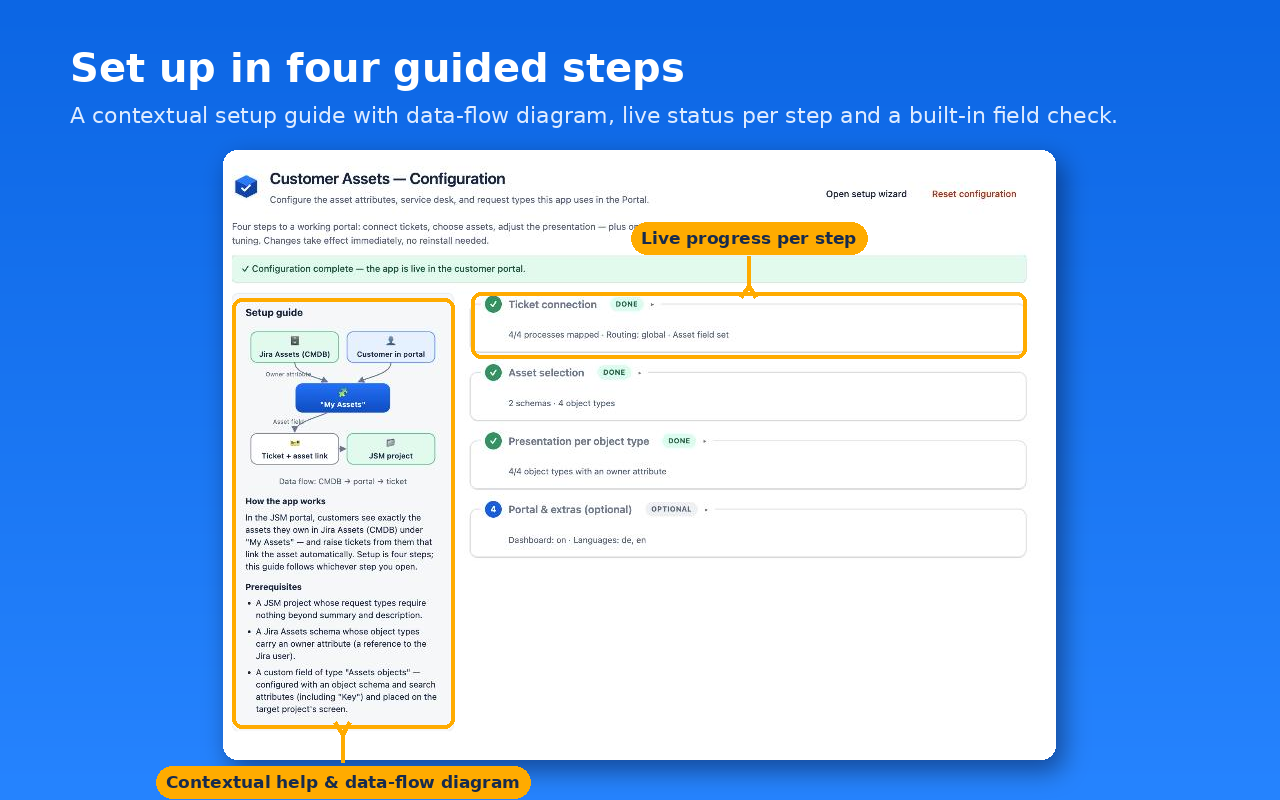
After installing, go to Jira administration → Apps → "Customer Assets — Configuration". On first run the setup wizard starts automatically; a contextual help panel with an illustrated example accompanies every step. The admin page also shows a setup status panel: four plain-language checks (asset database, owner mapping, Jira asset field, reporting paths) with fix buttons that take you to the right place.
In a hurry? The wizard's automatic suggestion scans your service project and asset database and fills in all four steps with one click — you only review the result.
2 · Connect tickets
Pick your JSM service desk and the request types for asset issues and asset registrations, and select the Assets custom field used to link the affected asset. Then click "Verify field". It checks field existence, type, screen assignment and the Assets field configuration end to end.
3 · Connect assets
Choose your object schema and the object types customers should see. For each type, confirm the auto-suggested owner attribute. It scopes every query to the signed-in customer.
Ownership stored on a linked object? Use the notation Reference attribute -> User attribute, for example Employee -> User; the suggestions include these paths automatically. While you map owners, a live preview shows exactly what the portal would list for you with the current, still unsaved selection — if your own assets appear, the mapping is right.
4 · Shape the experience
Per object type you set card attributes, a status attribute with color mapping, visible detail attributes, editability (direct vs. change-request) and icons. You can also add portal languages and translate object-type and attribute names. An optional dashboard start view (counters, status distribution, recent updates, quick actions) can be enabled globally.
How customers use it
Customers open "My Assets" from the customer portal user menu. They see only objects whose owner attribute matches their Atlassian account. The server enforces this, default-deny. From any asset they can report a problem, request a change or ask a question; each ticket automatically links the affected asset. Agents see the reporter's assets in the "Reporter Assets" glance in the issue view.
Security model
- Every resolver call resolves the customer scope from the signed Forge context and wraps every AQL query in a scope-binding predicate. No account ID → empty result set, even against a manipulated frontend.
- Updates are re-authorized server-side before writing.
- Admin endpoints verify Jira admin permissions as the calling user.
- No external endpoints: the app is eligible for the "Runs on Atlassian" badge. No data leaves your site. See the privacy policy.
Subscription & pricing
The app is paid via Atlassian: USD 0.50 per agent per month, flat USD 5/month for sites with up to 10 agents, with a 30-day free trial. Billing runs entirely through Atlassian. Without an active subscription the portal shows customers a friendly notice instead of asset data; a Jira admin can subscribe in Atlassian Administration under Billing.
FAQ
What if the "Verify field" check fails with a red result?
Follow the message shown for the failing check. It points at a wrong field type, a missing screen assignment in the target project, or an incomplete Assets field configuration. The last one is the most common cause of cmdb.config.not.found; see the yellow box above.
A customer sees no assets.
Check that the object type's owner attribute is set in the configuration and that the customer's Atlassian account is actually referenced in that attribute on their objects.
Our ownership is stored on a linked object, not on the asset itself.
Supported. Configure the owner as Reference attribute -> User attribute (for example Employee -> User). The portal resolves ownership through the linked object — server-side, with the same default-deny scoping.
Which languages are supported?
The UI ships in English and German and follows each user's Atlassian profile language. Object-type and attribute names can be translated per site language in the configuration (step 3/4).
Does the app create Insight objects directly?
"Register asset" raises a ticket for your IT team by default, keeping data quality and audit trail in your hands. Per object type you can alternatively allow direct creation and editing by customers.
Support
The fastest way is a ticket in our support portal — we respond within one business day. Alternatively use the contact form. Please include your site URL (no credentials!), the app version and, for configuration issues, a screenshot of the "Verify field" result.